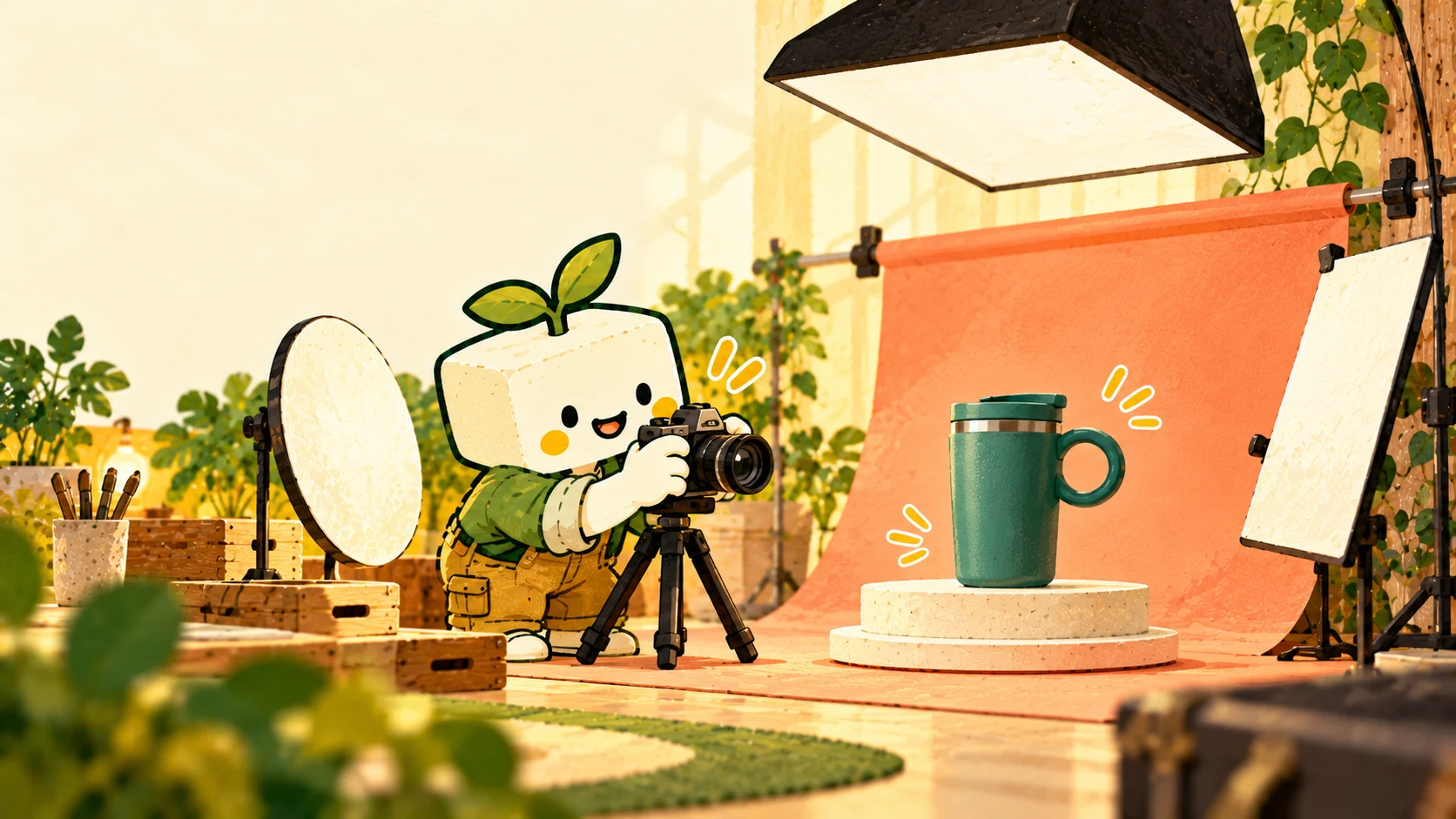
Product photos help people recognize an item, inspect its details, and imagine where they would use it. Before choosing a photographer or editing app, decide what each image needs to show and where it will appear. Put those decisions in a brief that a founder, freelancer, or agency can work from.
A brief also gives you a way to compare costs. A low quote can cover fewer finished images, fewer revisions, or a different kind of work. A small trial with the same requirements makes those differences visible.
The process below is BrandTofu’s editorial framework. The examples and illustrated mug are fictional. Product and tool documentation was checked on October 31, 2026.
Give each image a job
Start with the questions someone needs answered. For a travel mug, they might need to see its size, lid, handle, finish, and included parts. For a woven bag, the questions could concern strap length, lining, and the way it sits on a shoulder. A food package may need clear views of its label, contents, and serving size.
Turn each question into a shot, meaning a planned photograph with a particular view and purpose. Write the intended placement next to it. A store product page, a square social post, and a tall story may need different framing. One source image can sometimes support several crops. Check that before relying on it.
An initial mug brief could specify these images:
- Main view: show the whole mug, lid, handle, and actual color on the product page so someone can recognize the item.
- Detail: show both handle attachment points in focus in the product gallery so someone can inspect the connection.
- Scale: show the mug beside a stated size reference in the gallery so someone can judge its size.
- In use: show the actual mug in a plausible setting for a social post so someone can understand where it fits.
These are example choices, not a minimum image count. Add views for variants or features that a shopper could otherwise misunderstand. Remove a shot when it repeats information and has no planned use.
Shopify’s photography guidance describes a home setup using a window, a steady camera, a plain background, and reflector cards. It also recommends checking test images and trying several angles. Use it to plan a trial before purchasing equipment.
Record the details an edit must preserve
Keep a reference set of the actual item. Include the front, back, connections, label, and accessories relevant to the brief. Photograph the version you intend to sell. Record changes when a prototype and the final product differ.
Beside each shot, list the facts it must preserve: shape, attachment points, color, surface finish, label wording, proportions, and included parts. These checks apply to ordinary retouching as well as generated edits. A brightened image can lose surface texture. A background replacement can damage an edge. A generated scene can change a small component.
This article began with a founder’s public question about launch photography. In a follow-up, the founder explained that image tools kept changing a cap that attaches to the bottom of a bottle. That detail suggests a specific acceptance check: compare the attachment with the original in every proposed image. The same method works for a clasp on jewelry, a folding joint, a bag closure, or a fitted cover.
Separate the product from the setting when the editing workflow allows it. Keeping the original product on its own layer can help preserve its pixels while you work on the background. You still need to inspect edges, shadows, reflections, and scale. A convincing setting can imply a size or use the product does not support.
Choose who should make the images
DIY photography is a candidate when you can repeat the lighting and framing, the product is manageable, and your trial produces files that meet the brief. Count setup, shooting, selection, editing, and review time. A phone you already own can be enough for the trial; its results will tell you what needs further work.
A freelance product photographer may fit when the obstacle is a photographic skill, such as controlling reflections on polished metal or showing transparent materials. Ask to see examples of comparable materials and details. Share your shot brief and request a clear scope for finished files and revisions.
An agency or production studio may fit a project that needs coordinated styling, several people, multiple settings, or a larger campaign. Ask who will direct the shoot, select images, check product accuracy, and deliver the channel versions. The company label alone does not establish the quality or scope you will receive.
Editing software is part of each route. Adobe’s Generative Fill documentation describes selecting an area and generating variations. That is a way to create candidate edits. It does not establish that a particular product detail survived the change. Judge the exported image against your references.
For comparable proposals, give every provider the same shot list, product references, placements, deadline, and review criteria. Ask what the price includes: preparation, styling, shooting, retouching, crops, file formats, revisions, and any expenses. Confirm the permitted uses of the finished work, including paid ads and future edits, before commissioning it. Record the agreed scope with the quote.
Run one trial through the whole process
Choose a shot with a real difficulty. A plain front view may be easy while the reflective lid or handle connection causes problems. Use that difficult view to test your own setup or a clearly scoped trial with a provider.
Follow the image through selection, editing, export, and the intended placement. Record the accepted file, work time, revision count, cost, and any unresolved defect. Compare the trial with your brief. A trial that misses an attachment needs another method or revision before the full batch.
Avoid projecting a trial’s cost across a large set automatically. Setup can be shared, while new colors, materials, people, or locations can add work. Ask which costs repeat and which are shared across the shoot.
Check the crop in a real editor
A crop changes the frame. It can remove a feature that was visible in the original, even when no pixels inside the product were retouched.
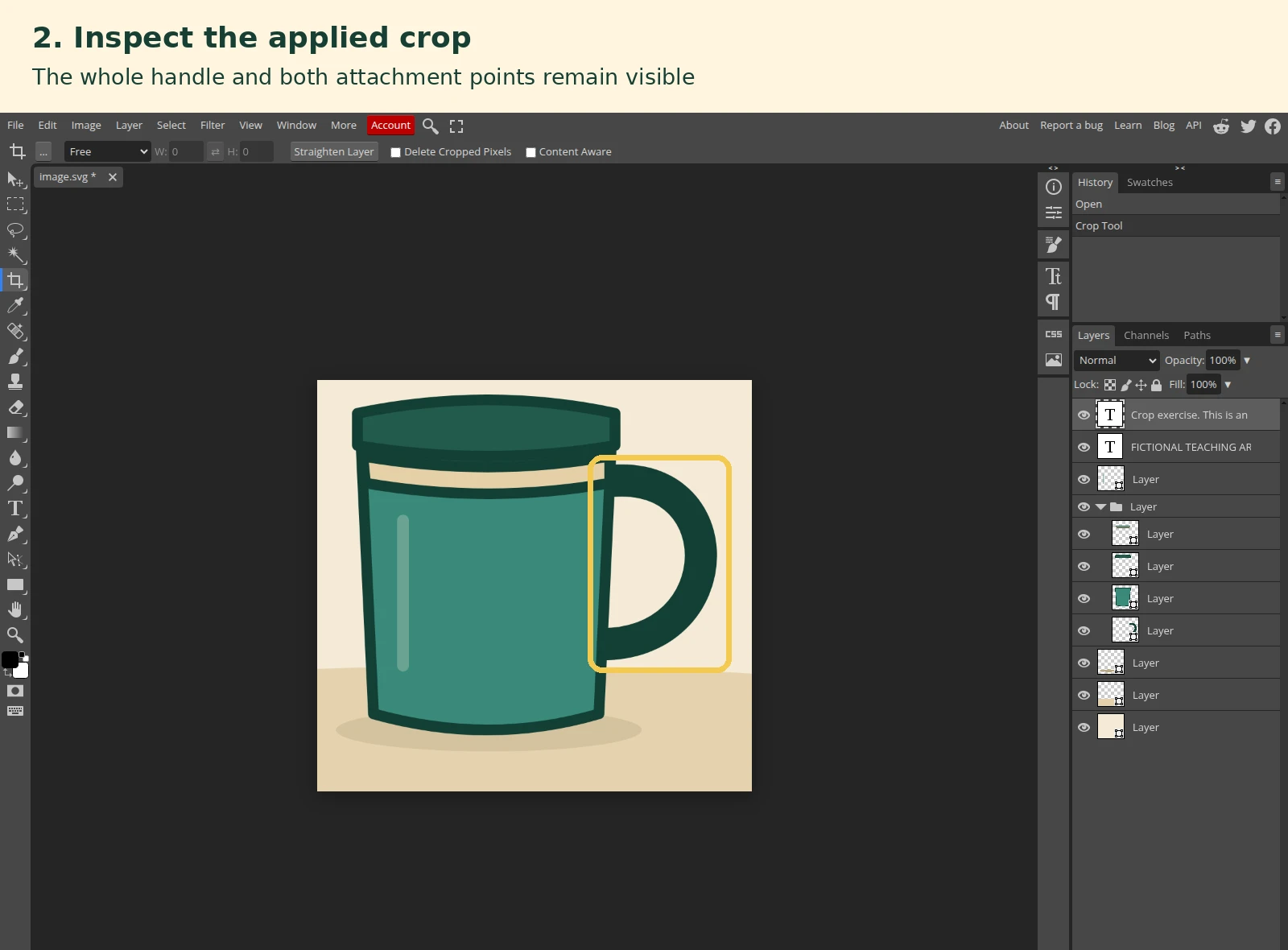
Our demonstration uses Photopea, a browser image editor, with fictional mug artwork. The crop operation was available during this check with no signup or payment. The exercise shows framing, not photographic quality or a real product result. No generative feature is used in this demonstration.
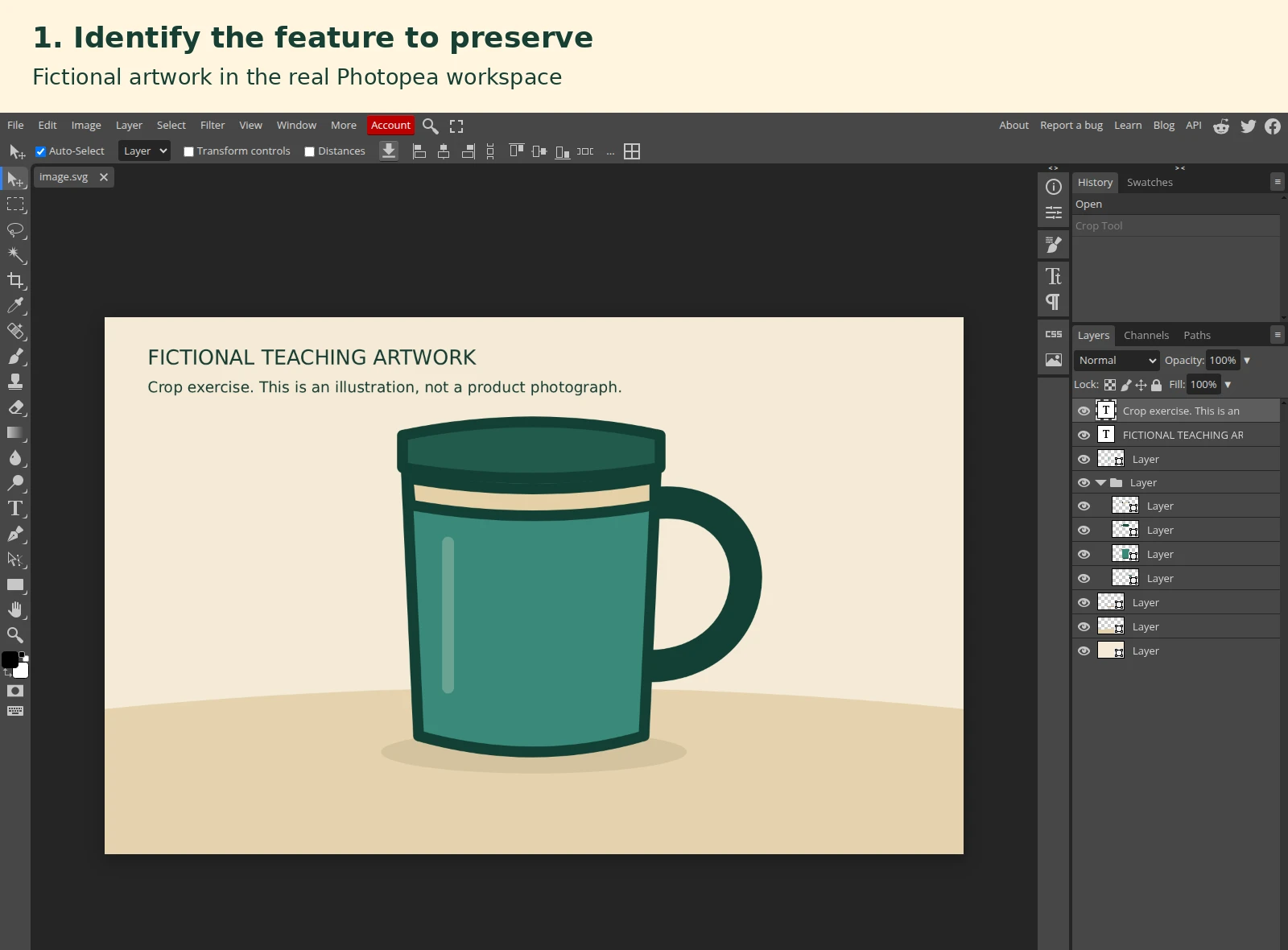
Open a copy of the image, choose the Crop tool, and draw the proposed frame. Keep the whole handle and the attachment points inside it. Leave room around the object for the destination’s layout. Apply the crop, inspect the result, and save the derivative separately from your source.
Then test the file in the actual page or post preview. Inspect the small-screen view and any automatic crop. If a destination cuts off a feature, revise the crop or make a separate file for that placement. A square export does not guarantee that every platform will display its full frame.
Keep channel requirements with the brief
Store the current requirements for each destination alongside the planned images. Record dimensions, file type, size limits, background rules, and any restrictions on overlays or generated content. Check the destination’s own documentation when the shoot is commissioned and again before delivery.
For example, Google Merchant Center’s image specification requires images to represent the product accurately and gives separate rules for main product images. Its guidance also addresses generated-image metadata. Those are rules for that destination; a social campaign brief may permit a different treatment. Keep a clean source and make channel versions from it.
When reviewing the final set, open each delivered file and compare it with the reference item and its planned placement. Save an approval record containing the filename, variant, date, reviewer, and any limits on use. Keep the source files and agreed production scope with it.
If the trial passes, commission the remaining shots with the same checks. If it fails, name the failed requirement in the next brief: the handle disappeared, the label became unreadable, the finish changed, or the destination cropped the item. A specific defect gives the next attempt a checkable target.